lstage: interactive git staging by number
A minimal CLI for staging and unstaging git files by number. No paths, no flags, no friction.
I built lstage because I kept either staging everything with git add . when I only wanted a few files, or tediously typing out full file paths one by one. I wanted something that just shows me what’s changed, lets me pick by number, and gets out of the way. So I built it.
key features
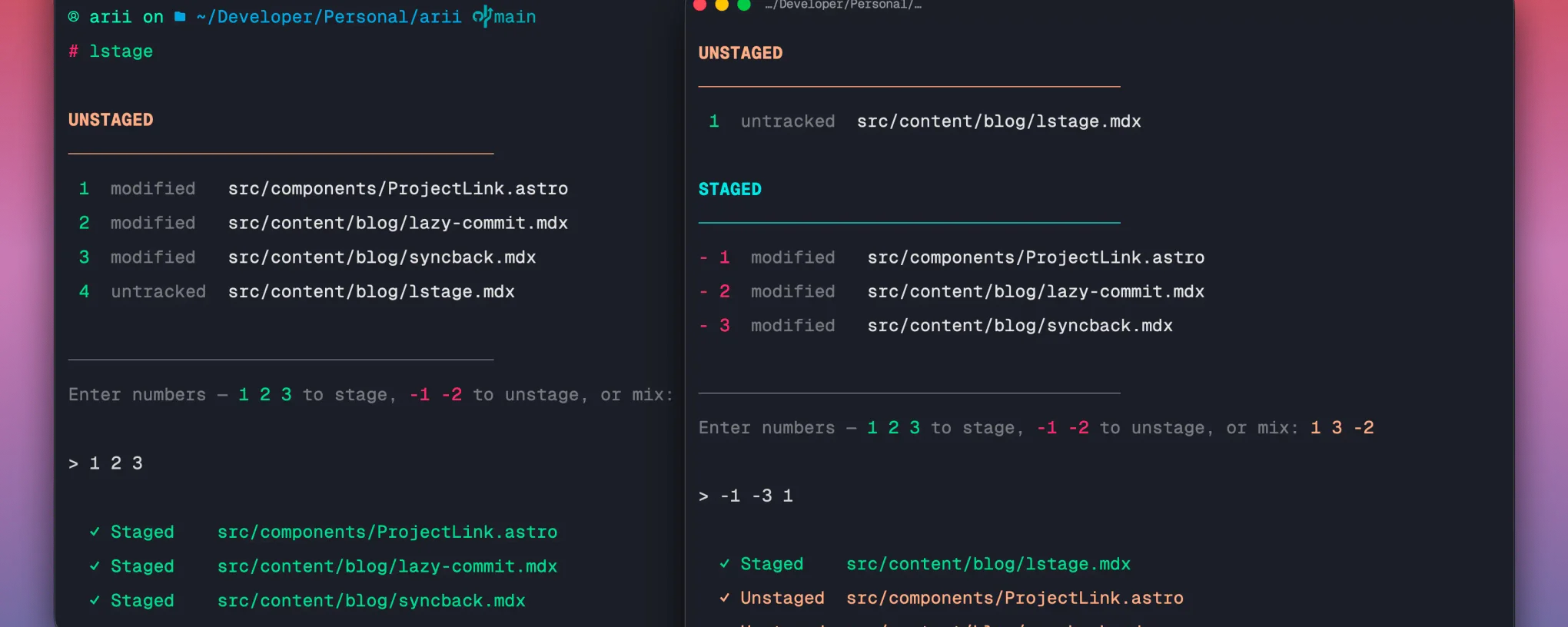
- Shows all unstaged and staged files in a numbered list
- Type positive numbers to stage, negative numbers to unstage
- Mix freely in one input:
1 2 3 -1 -2works in a single line - Colour-coded output: green for unstaged, cyan for staged, red for negative indices
- Handles modified, untracked, deleted, renamed, and copied files
- Gracefully exits if run outside a git repository
tech stack
# core
typescript | node.js | chalk
how it works
The flow is split into four small files that each do one job. git.ts runs git status --porcelain and parses each line into two lists (staged and unstaged), mapping the two-character status codes into readable labels like modified, untracked, and deleted. display.ts prints those lists to the terminal in two stacked sections, each file numbered, with colour applied via chalk. prompt.ts reads a single line of input from stdin and parses it into two arrays: positive numbers to stage and negative numbers to unstage. stage.ts takes those arrays, looks up the corresponding files from the parsed git status, and runs git add or git restore --staged for each one.
The two-character status format from git status --porcelain is what makes the split clean. The first character represents the index (staged) and the second represents the worktree (unstaged). Parsing them independently means a file that is partially staged shows up in both lists, which is the correct behaviour.
usage
# install globally
npm install -g @ariian/lstage

# run in any git repo
lstage
You’ll see your changes split into two sections:
UNSTAGED
────────────────────────────────────────
 1  modified   src/components/Button.tsx
 2  modified   src/components/Modal.tsx
 3  untracked  src/utils/helpers.ts

STAGED
────────────────────────────────────────
-1  modified   README.md
-2  new file   src/index.ts

────────────────────────────────────────
Enter numbers: 1 2 3 to stage, -1 -2 to unstage, 1 3 -2 for both

> 1 2 -1
highlights
The negative number convention for unstaging was the core design decision. Most interactive staging tools use arrow keys, spacebar, or separate prompts for staging and unstaging. Using sign to encode direction means you can express a mixed operation (stage some files, unstage others) in a single line of input with no mode switching. It maps naturally to the mental model of positive being additive and negative being subtractive.
Keeping the tool to a single command with no subcommands or flags was intentional. lstage does one thing: show you what’s changed and let you pick. There’s no config, no setup, no options. You run it, you pick, you’re done.